Showing posts with label 64. Show all posts

Wednesday, August 12, 2009

Dual-Channel Core i7


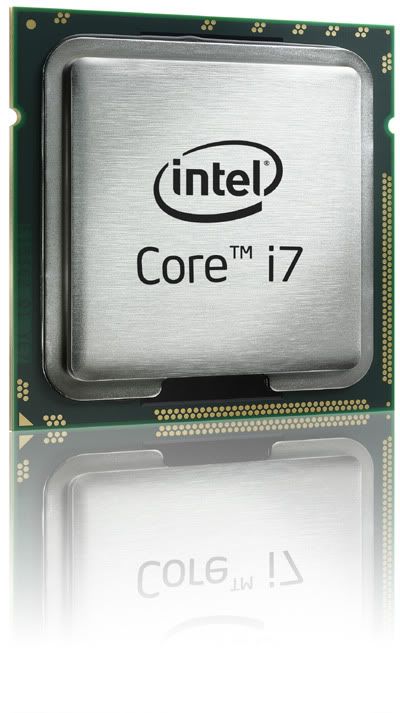
The Intel Core i7 quad-core desktop processor will soon also come in a version with integrated dual-channel DDR3 memory controller

Don't do a double-take. You read that right. Intel Core i7 quad-core desktop processor with Dual-Channel integrated memory controller, not Triple-Channel. For those who know the Core i7, you'll know it supports triple memory modules, so to go backwards and support dual memory modules is a shocker! So why is Intel doing this?

Because the Core i5 desktop processors will be coming out, which comes with an integrated dual-channel memory controller, so offering the Core i7 with the same feature allows users to select from the middle-range Core i5 or the high-end Core i7 while keeping their current dual memory modules from the previous Core 2-class of desktop processors. Want to know more?

By the way, this is of course, assuming you were using DDR3 memory and not DDR2, as some previous desktop boards which supported the Core 2-class of desktop processors only supported DDR2 memory. If that's the case then you can also consider going for the triple-channel Core i7 since you'll be upgrading your memory anyway! This new dual-channel Core i7 is designed for users who already are using DDR3 memory, but want more power than the Core i5.

So what happens to the triple-channel Core i7? It will still be there as a top-end quad-core desktop processor, and for those who are willing to buy new triple memory modules, as well as need more memory, specifically if they're using an x64 (64-bit) operating system, which can use beyond 4GB of memory.

How would you know the difference then between a dual- and triple-channel Core i7? The triple-channel still maintains the LGA1366 processor socket while the new dual-channel Core i7 and i5 (as well as entry-level dual-core i3) will use the LGA1156 processor socket instead. That's right, there'll also be a Core i3 dual-core entry-level desktop processor for those who don't even need the power of the Core i5.

The new LGA1156 processors will be supported by desktop boards powered with Intel's P55 board controller (chipset), while the LGA1366 Core i7 processor will continue to be supported by Intel's X58 chipset. That's not the end of the Core i7 triple-channel class processors though. Intel will also release the Core i9, a six-core desktop processor for the Core i7 platform.

Stay tuned for more updates about these new processors if you're confused about them.

More Data?

Thursday, July 30, 2009

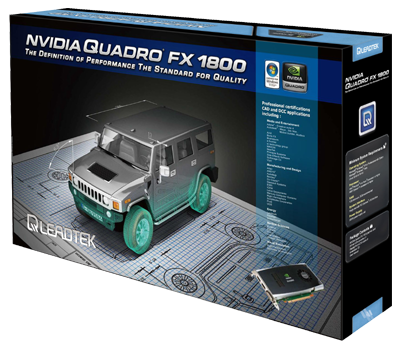
Coming Soon - Leadtek Quadro FX 1800 Review

LeadTek Quadro FX 1800 box

If you're a a workstation user, you might be familiar with the professional video cards from NVIDIA called the Quadro. Unlike the GeForce graphic cards, which are designed for gaming and multimedia, the Quadro cards are designed with 3D and digital animation in mind - though they can also handle 3D games as well - but not so good since they're not designed for it!

But why? Want to know more about the differences? Read on to find out.

NVIDIA GeForce and Quadro logos

By the way, both GeForce and Quadro can also be used for programming via NVIDIA's CUDA technology, which makes use of GPGPU, a concept where the graphic card's GPU is used as a processor - just like the processor on the mainboard. The difference in that the program must be specially designed to take advantage of this. That's where technology like CUDA comes in so programs written for CUDA can do this.

NVIDIA CUDA technology logo

CUDA allows you to use GeForce and Quadro card for more than what they're designed for - like video conversion (transcoding), image editing, and even artificial intelligence (AI)!

More on CUDA later - let's focus on the Quadro first, since most people know about GeForce already. Then we'll get on to how CUDA can be used on both cards.

The Quadro is much more expensive than the GeForce because they perform better for 3D work, especially in response times working with a 3D object, thanks to their data transfer bandwidth, optimised drivers, as well as the firmware on the Quadro, which controls things like sacrificing speed for quality. In games, speed is more important, hence why in GeForce cards this will be reversed. In Quadro cards, quality is much more important.

Worth mentioning is that the Quadro runs at 5GBps for its data transfer, taking advantage of the 5GBps PCI Express 2.0 slot (where a graphic card sits on a mainboard). The highest-end single-GPU GeForce, the 285, runs at 4.6GBps. For reference, the older PCI Express 1.0 slot interface supports up to 2.5GBps only.

3D software
Autodesk's 3D software - AutoCAD (left), 3D Studio Max (centre), Maya (right)

ALso, some Quadro cards are specially designed for certain 3D software like Autodesk's classic AutoCAD, or their acquired 3ds (3D Studio Max) and Maya software. While GeForce just needs to be fast for modern 3D games, Quadro needs to be accurate, and this is where it excels in, and that explains the higher cost of the hardware.

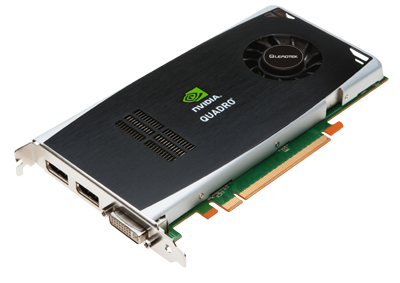
Leadtek Quadro FX 1800 card

To take a better look at Quadro, we'll be testing one from Leadtek, the FX 1800, which replaces the previous FX 1700, both coming from the middle-range line. Stay tuned for it!

More Data?

Tuesday, July 14, 2009

x86 (32-bit) and 4GB of Memory


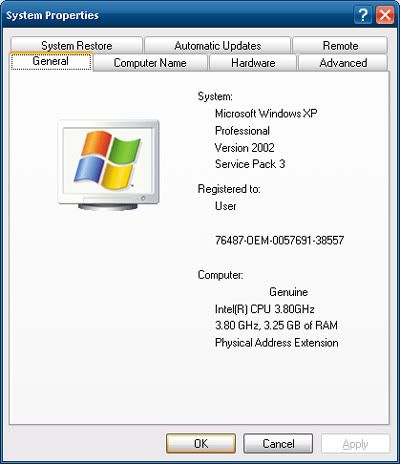
This might be something you already know - or don't. x86 (32-bit) computer systems can only recognise up to 4GB of total memory - regardless of what type of memory. This includes the DDR1, 2, or 3 memory modules slotted on your board inside the computer casing, as well as the memory (usually GDDR3, 4, or 5) that comes with your graphic card (which contains the GPU or Graphics Processing Unit) - if you have one installed.

Some boards come with integrated GPU so the memory is shared from the main installed modules. For these, there is no need to take the graphic card memory into consideration. But what if you have a graphic card?

If you have a graphic card, and say it comes with 512MB of memory, plus you have 4GB of memory sticks installed on your board, you will only be able to use about 3.5GB of memory because the other 512MB has to be allocated for the processor to access on the graphic card. This is a limitation of x86 design.

To circumvent this problem you have to move to x64 (64-bit), which means you have to install an x64 operating system (OS), like Windows XP 64 (rare), Windows Vista 64, or the upcoming Windows 7 64 - currently available as a freely-downloadable RC (Release Candidate) version from Microsoft's site here.

Keep in mind to use an x64 OS, your processor needs to be able to support x64 as well - check Intel or AMD's site (depending on which brand of processor you have) to see, or see here to see what processors support x86 and x64 OSes.

There is one caveat to using an x64 OS however - only x86 software can run on it (this backwards compatibility is included), and this means there can be no legacy 16-bit code in the x86 software, which can sometimes happen to older hardware which have outdated software.

x64 also means you can go beyond 4GB of board memory - so feel free to install more up to how much your board supports and if you can afford it. Having more memory means you can have more things open on your desktop without having to close something to free up memory for something else to open.

Keep in mind memory on the board and memory in the form of hard drive storage is 2 very different things. The board memory dictates how much you can open on your desktop at any one time while your drive storage dictates how much you can keep on your computer. There is a dual-stage of storage and usage going on between drive and memory so they're not the same.

More Data?

Tuesday, July 7, 2009

Sun Virtual Box 3 for 3D

Sun Virtual Box 3 Windows 7 RC
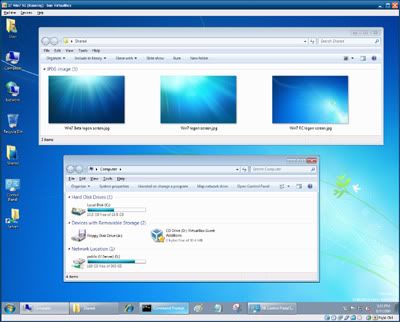
That's Windows 7 RC running in Sun's Virtual Box 3 window (on a Windows XP desktop)

If you've read this post before (scroll down to the bottom of it), you'll know about Sun's Virtual Box (VB), a virtualisation software like Microsoft's Virtual PC 6 (VPC6), which is designed for Windows XP and Windows Vista.

Virtual PC 7 (VPC7) is designed for Windows 7, but unlike VPC6, VPC7 is designed to work transparently on Win7 as a compatibility feature for Windows XP software, hence it's known as "XP Mode". If VM (Virtual Machine) software sounds familiar, you might have heard of VMware before. But what's the difference?

VB differs from the popular VMware by being free, and it differs from MS VPC6 by emulating better computer hardware (since it's newer), and like VPC7, it offers a "Seamless Mode", where you can hide the virtual desktop running in VB and use the virtual windows with your actual operating system (OS). VMware calls this the "Unity Mode".

Anyway, since VPC7 only works on Win7 and only runs XP, this makes VB an attractive option if you're running XP, Vista, Mac or Linux, and if you want to run virtual Vista, Linux, etc.

Additionally, VP7 requires your processor to support hardware virtualisation (known as VT in Intel and V in AMD). If you have an Intel Core i-class or an AMD Athlon-class or AMD Phenom-class processor, it's ready. If it's an Intel Core 2-class or Intel Pentium 4-class processor, it may or may not. Check the Intel Archive Site here to see the list.

Moving on, in our previous VB post, we talked about using VB2 to sample Win7 RC (Release Candidate) instead of installing 7RC on your computer. However, VB2 suffers from one major flaw - while it emulates newer hardware than VPC6 which uses older hardware, it doesn't support 3D, in the form of Microsoft's Direct 3D - the most important component in DirectX for Windows, and OpenGL (Graphics Library), used in Mac and Linux.

VB3 solves that by including 3D support - albeit it's experimental. With VB3, you can now take full advantage of the newer emulated hardware - just like how VB2 did, except now you have 3D.

In our following post, we'll show you how to use these free VM software. In the meantime, feel free to play around with them. Remember, they're virtual. So whatever happens in them happens in the virtual OS - NOT the OS which these VM software runs on. So relax. You're safe.

This also means you don't have to bother with anti-virus or almost any forms of security. Hence why most anti-virus won't even work in a virtual OS. Which means using a virtual OS is a very secure way to experiment with any dangerous software which might otherwise wreak havoc on your actual OS. Using virtualisation is a good way to visit unknown sites which might otherwise harm your computer with your actual OS. However keep in mind you can share files between the virtual OS and your actual OS so make sure your actual OS has an updated anti-virus! We'll show you how to share files between the virtual (guest) OS and your actual (host) OS next time.

Free Virtualisation Software Download Links:
* Virtual PC 7 requires 2 install steps - the VPC7, followed by a virtual XP image (included)

More Data?

Monday, June 22, 2009

Best Free Antivirus?

Avast Antivirus Bootscan

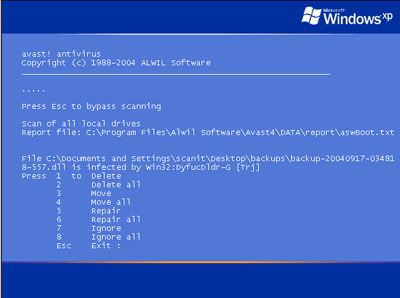
If you're looking for the best free antivirus out there, there's nothing better than Avast, made by Alwil. Not only does it support x64 (64-bit) operating systems (Windows XP or Vista), it also supports Linux, and comes with boot scan capability, which is very important if you have a virus or worm on your computer, as this ability eliminates the malicious program before it even loads when the OS starts up.

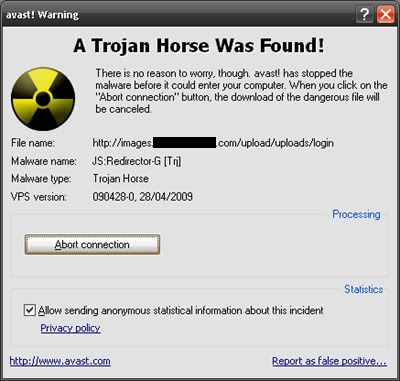
Avast works for a year - all you need to do is register on their site. Avast can also remove infections from USB flash drives (but please right-click and scan the drives in your My Computer first before opening it - you might have to do this a few times to fully get rid of it), and trojans. Did you know you can also customise the look of it?

Avast Antivirus Trojan

If you like to skin your AV software, Avast has a selection of skins here. Choose from Bionic for a BioHazard look, LCARS for Star Trekkies/Trekkers, Corporate if you're tech support installing for offices, Matrix for Neo fans, aVist if you're using Vista and want the AERO feel, and even KDE for Linux fanboys.

And yes, Avast is recognised by XP and Vista's Security Center so it will notify you when it's outdated so you can manually update it should the automatic update not execute (perhaps your connection was down at the scheduled time). Anyway it's always a good idea to manually update your security software off and on for any updates it may have missed during automatic updates.

A word of advice, an AV - or any AV for that matter - is a prevention tool more than a solutions tool. Meaning you need to take measures to scan the unknown before opening, not use your computer as usual and expect the AV to solve a virus once you're infected. Virii are designed to disable AV - trying to remove one once you're infected can be a hassle.

You can get Avast 4.8 from here (XP/Vista 34MB) and then register here. For more download languages, visit here. Linux users can download it here. Check out its features compared to others here.

More Data?