Showing posts with label windows 7. Show all posts

Tuesday, May 11, 2010

Win7's OS-Tan gets her own mini-Anime

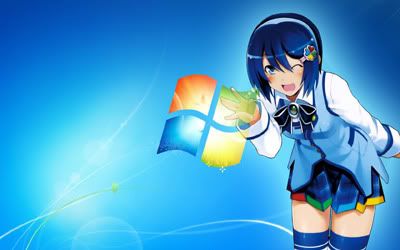
Like this Nanami Madobe wallpaper? You can get the original (1680 x 1050) here.

If you don't already know by now, Windows 7 (Windows 6.1 actually), Microsoft's latest desktop operating system (OS), was given an official mascot for the Japanese edition, to cater to the geek culture of OS-Tan, which is basically a personification of an OS. Pre-Win7 OS-Tans were unofficially created by fans, but for Win7, MS wanted to be part of the culture and hence created Nanami Madobe. We first blogged about her here.

Prefer this wallpaper of her instead? The original (1920 x 1200) is here.

Now she has her own anime, albeit a short one to promote using Win7 as a SFF (Small Form Factor) or HTPC (Home Theatre Personal Computer). Take a look @ her in action in this YouTube video:


More Data?

Monday, October 19, 2009

Windows 7 on Windows XP via Sun Virtual Box 3


A few months back we posted how you can run and try Windows 7 on your Windows XP desktop so you can decide if you want to switch to Windows 7 when it comes out a few days from now. You can read our previous entry here.

Now we continue by showing you how to actually go about doing this. We'll need to use a virtualisation software to emulate a virtual machine so it can run on top of your existing machine. Interested?

We're assuming you're running Windows XP, which is the most popular operating system (OS), and the likely candidate to migrate to Windows 7 - if you chose to do so. Of course, you can run virtualisation software on any other OS as well - as long the virtualisation software supports it.


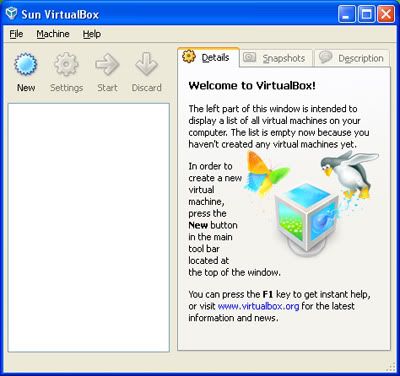
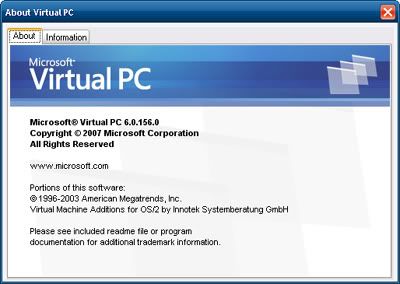
We'll be using Sun's Virtual Box 3, since it's free, and unlike Microsoft's Virtual PC 6 Service Pack 1 (2007), which is also free, Sun's version offers a bit more. Of course there's popular VMware, but that's not free.

Keep in mind Microsoft's Virtual PC 7 only works on Windows 7 as XP Mode. We'll talk about that later on how to use XP software on Windows 7. Right now let's focus on Windows 7 on XP.

First you'll need to download Virtual Box, which can be found here (70MB). If you want to see the other options of Virtual Box, visit the site here. To get a primer about Virtual Box, go here.

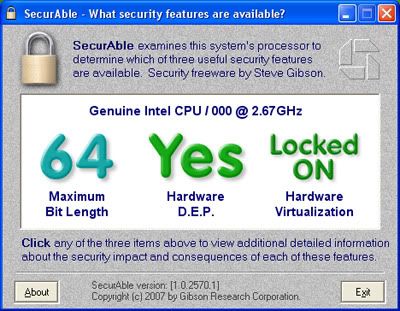
Next, you'll need a copy of Windows 7 installation DVD, which you can get the free 3-months Enterprise edition here (x86 32-bit or x64 64-bit around 3GB). However, before you download the x64 version of Enterprise and find out you can't use it on your machine, first download and run this SecureAble tool (site here) to find out if your processor supports hardware x64 virtualisation. If your processor supports virtual x64, you'll get this:


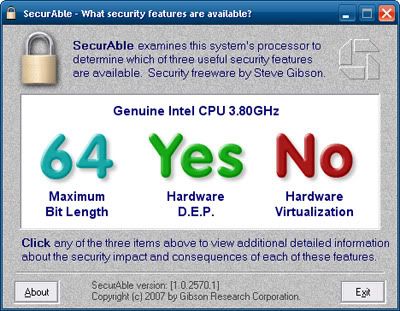
If it doesn't, you'll get this:


So download the right Enterprise! The Enterprise edition is similiar to Windows 7 Ultimate (compare here), so you can try everything that Windows 7 has to offer.

Once you've used the Enterprise edition to evaluate Windows 7, you can then buy the full RTM edition when it goes on sale in the next few days. Okay, got your downloaded trial Enterprise edition burned into a DVD? It's time to start.


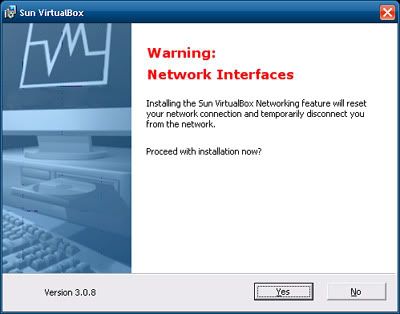
First, install the downloaded Virtual Box on your XP desktop. It will cut you off from the Internet while it installs its virtual networking hardware, so make sure you're not downloading anything! Once it's done, run the installed Virtual Box.

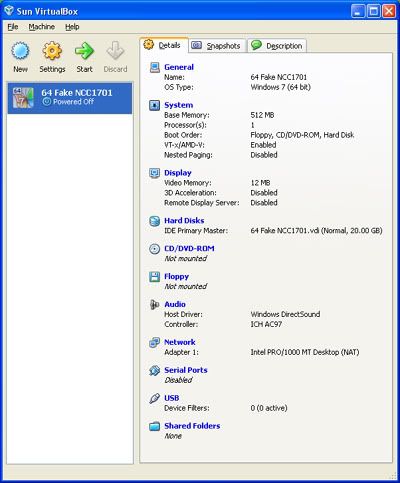
Now create a new virtual machine. Click the New button in Virtual Box and follow the wizard guide. Type a name for your virtual Windows 7 Enterprise (maybe Fake NCC1701? Okay, inside Trek joke - ignore!).

Select the type of OS you want to install on this virtual machine from the list - in this case, it'll be Windows. Then select the version of Windows - which is Windows 7. Next, select how much of your machine's memory you want to devote to this virtual Windows 7 - you can leave it as the default or increase it if you have more memory to spare.

If you're doing this on Windows XP, chances are it's the x86 (32-bit) version, so you'll be limited to 4GB of memory (if you have that much installed). This means you can't put more than 2GB for this virtual Windows 7 since that will leave your running Windows XP with less than 2GB of memory to run all else.

Next, you need to create a virtual hard drive to run this virtual Windows 7. This will lead you to the drive wizard. You can stick to the dynamically-expanding storage, this will grow the file space as needed based on your need for it. Next you'll need to also name this virtual drive. Again, you can stick to the initial size given or give your own size (and it will expand accordingly if you chose dynamic earlier).


Once all these are done you'll get a new entry in your list of virtual machines in the Virtual Box. It will be in a powered-off state. Now you'll have to power it on to install your Enterprise DVD.

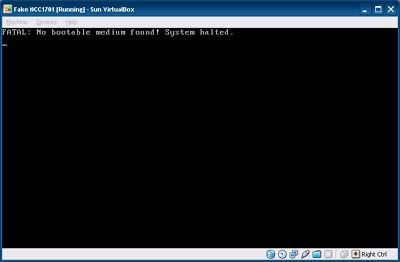
Click on the Start button in Virtual Box and a new window will open as the virtual machine comes to life. Since it's your first time running this new virtual machine, another wizard will ask you for the source to install an OS to this new virtual machine. Just select your DVD drive. If you don't have the downloaded-and-burned Windows 7 Enterprise trial DVD in your drive, you'll get this:


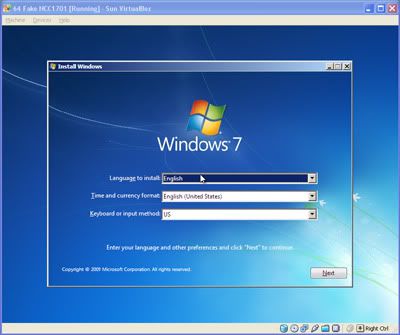
If you do have the DVD in your drive, you'll get the the Windows 7 installation screen:


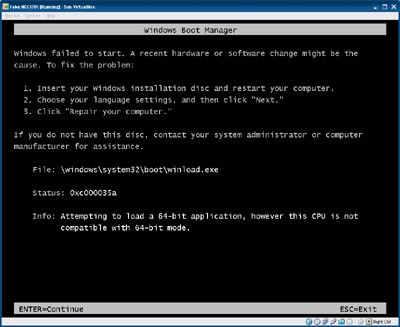
If you were so 'smart' to download and burn the x64 (64-bit) version of Enterprise but your processor can't run virtual x64 OS, then you'll get this:


Going back to the installation, so assuming all goes well, proceed with the user-friendly Windows 7 installation as if you were installing on an actual computer - even if you're doing it virtually. Remember that its installing on the virtual drive you configured earlier - so don't worry about it formatting your existing running Windows XP!

As the installation is running in its own virtual machine window, feel free to do something else on your Windows XP desktop while waiting for the installation to complete. When it's done, it'll automatically restart the virtual machine like it were a real computer.

That's all there is to it! Now you've got a virtual Windows 7 running on your existing Windows XP desktop! Feel free to run it anytime. You can do the same with the RTM Windows 7 when it's out a few days from now. Keep in mind this virtual Windows 7 is running off a virtual hardware, which means you can't install software drivers for the hardware that's on your real machine. You probably won't have to anyway - Windows 7 will automatically detect the virtual hardware.

Next, we'll show you how to share files between this virtual Windows 7 machine and your real Windows XP desktop.

More Data?

Saturday, September 26, 2009

AMD ATI Radeon HD5000 Series Windows 7 Direct X 11 graphic cards


If you don't already know by now, the next standard in gaming graphics is DirectX 11. This is found in Microsoft's upcoming Windows operating system, Windows 6.1, or more popularly known as Windows 7 (not because 6+1=7 or because Windows Vista was Windows 6.0, but because Microsoft says this is the seventh release of Windows).

DX11 adds some new features and one of them is Direct Compute, using the new Compute Shader element, which adds to the previous Geometry Shader which was introduced in DirectX 10 (Unified Shader Model 4) on Vista, and the Pixel and Vertex Shaders, which were introduced in DirectX 9 (Shader Model 3) prior to that in Windows XP.

Direct Compute is an implementation of GPGPU technology. Basically it uses your graphic card for processing instead of just your processor, thereby giving you extra performance. This can also be used for 3D Ray-Tracing and Video Transcoding. But did you know DX11 can work with DX10?


Unlike DX10 which required either AMD's ATI Radeon HD2000/3000/4000 series, or NVIDIA GeForce 8/9/200 series of DX10 gaming cards, DX11 can function on DX10 gaming cards as well, albeit not as fully as on DX11 gaming cards, which is the ATI Radeon HD5000 series, or NVIDIA GeForce 300 series (which isn't out yet).

As expected, this means DX11 can also work on Vista, and it can, when Microsoft releases the Vista Platform Update, but like the above DX11 and DX10 compatibility, you won't get the full features as compared to a pure DX11 platform, which is Windows 7 with DX11 gaming card, and in this case, only ATI's HD5000 is out. With this, coupled with Windows 7, you'll get the full DX11 deal. See here for a list of upcoming DX11 games.

Of course, with DX11 you can also play DX10 games, and you can see a list of DX10 games here - but remember to update your DX files! If you haven't done so, you can get it for free from Microsoft's site here (100MB). Even if you're using Windows XP with DirectX 9, it will update your files to the latest DX9. This might help if you're having problems running some games.

More Data?

Wednesday, August 26, 2009

PC and Windows 7 Cookies

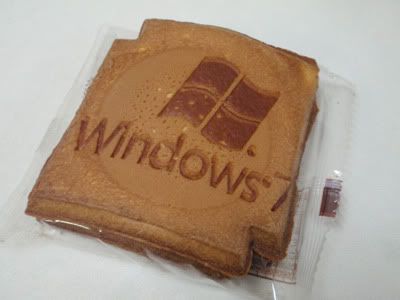
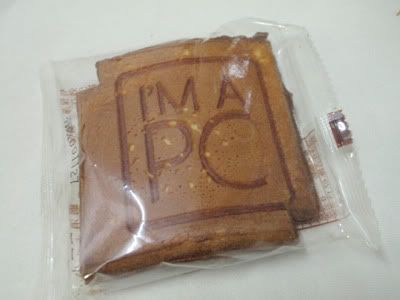
At BrickTech, we're about LEGO® and tech, but sometimes we're willing to make an exception when something fun crops up, since LEGO is all about fun too! We're talking about Windows 7 and Microsoft's "I'm A PC" cookies - and this isn't about the term cookies used in Web Browsers!

Windows 7 cookie

These are Fried Cookies, so they taste like Fortune Cookies or a thicker version of Love Letters. Interested to find out who made them?

PC cookie

They were specially made by Taiwan's Kobayashi Cookie Factory at XLCookie.com (Chinese only) . If you can find these cookies on their online shop, go ahead and order them to 'taste' Windows 7!

You can see another picture of this Windows 7 cookie on Bianca Wong Pi Chin's Flickr here.

More Data?

Friday, July 31, 2009

NVIDIA CUDA

NVIDIA CUDA GPGPU technology logo

What is NVIDIA CUDA? If you've read our previous post here, you'll get a brief understanding of CUDA, which is basically NVIDIA's implementation of GPGPU technology by supporting programs (and games) designed to take advantage of CUDA. GPGPU is explained below.

CUDA is found on GeForce 8 series of 3D gaming and multimedia graphics card and above - as well as Quadro FX professional workstation video cards. This is possible because since GeForce 8, as well as the new Quadro, the design of the graphics processor (the GPU) on the card has changed. In fact, it's more like a CPU (the processor on the mainboard) now. Hence what you have is a GPU that functions like a CPU, and is known as GPGPU. But how did this come about and why? Read on.

In the past, GPUs work in seperate processing methods - one part of the GPU will do the processing of the 3D structure, while the other part will then process the image on the structure - think of it like how when you construct a building you first have to build the framework before you can install the windows and floors.

That worked fine for awhile, until 3D games began to get more demanding and this was a poor allocation of GPU resources - what happens if you had more structures to show but less textures and surfaces? Or the other way around? Hence the birth of the new GPU known as Unified Shader Architecture, which combines the mini processes inside the GPU into a single block which can process anything given to it dynamically. So what you have now is one large processor.

So since you have a CPU in a GPU, now you can also use it for processing programs asides from just processing 3D graphics in games (or processing 3D scenes for Quadro cards). In comes CUDA which allows this since the GPU is still not a full CPU so you need an interface medium.

What can CUDA do? Basically anything that a CPU can do - except programs have to be made to take advantage of CUDA for this to happen, so that will take time. Some of the early programs include video conversion tools.

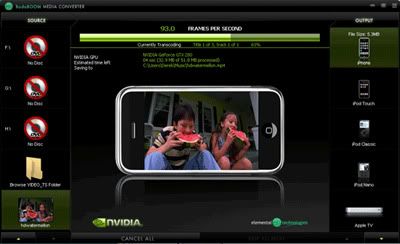
BadaBoom CUDA media converter
BadaBoom Media Converter using NVIDIA CUDA GPGPU technology

This converting (transcoding) process takes up time and if you were to run it on your CPU, not only will you won't be able to do other tasks on your computer because your CPU is busy with the process, it will also be slower since CUDA is a newer technology which can be done from scratch to be optimised faster. One such CUDA transcoder is BadaBoom.

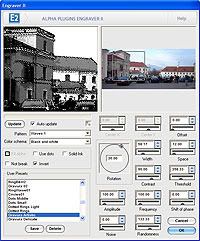
Photoshop plugin
An image filter plugin in Adobe Photoshop

Then there's also the ability to use CUDA for image processing, like running plugin filters in Adobe's Photoshop. Again, this takes time on the CPU so for large images, it will be faster on CUDA. You can also use CUDA for games. That's where Microsoft's Windows DirectX 11's Compute Shader comes in, found in Windows 7. But we'll leave that for another post.

More Data?

Tuesday, July 14, 2009

x86 (32-bit) and 4GB of Memory


This might be something you already know - or don't. x86 (32-bit) computer systems can only recognise up to 4GB of total memory - regardless of what type of memory. This includes the DDR1, 2, or 3 memory modules slotted on your board inside the computer casing, as well as the memory (usually GDDR3, 4, or 5) that comes with your graphic card (which contains the GPU or Graphics Processing Unit) - if you have one installed.

Some boards come with integrated GPU so the memory is shared from the main installed modules. For these, there is no need to take the graphic card memory into consideration. But what if you have a graphic card?

If you have a graphic card, and say it comes with 512MB of memory, plus you have 4GB of memory sticks installed on your board, you will only be able to use about 3.5GB of memory because the other 512MB has to be allocated for the processor to access on the graphic card. This is a limitation of x86 design.

To circumvent this problem you have to move to x64 (64-bit), which means you have to install an x64 operating system (OS), like Windows XP 64 (rare), Windows Vista 64, or the upcoming Windows 7 64 - currently available as a freely-downloadable RC (Release Candidate) version from Microsoft's site here.

Keep in mind to use an x64 OS, your processor needs to be able to support x64 as well - check Intel or AMD's site (depending on which brand of processor you have) to see, or see here to see what processors support x86 and x64 OSes.

There is one caveat to using an x64 OS however - only x86 software can run on it (this backwards compatibility is included), and this means there can be no legacy 16-bit code in the x86 software, which can sometimes happen to older hardware which have outdated software.

x64 also means you can go beyond 4GB of board memory - so feel free to install more up to how much your board supports and if you can afford it. Having more memory means you can have more things open on your desktop without having to close something to free up memory for something else to open.

Keep in mind memory on the board and memory in the form of hard drive storage is 2 very different things. The board memory dictates how much you can open on your desktop at any one time while your drive storage dictates how much you can keep on your computer. There is a dual-stage of storage and usage going on between drive and memory so they're not the same.

More Data?

Tuesday, July 7, 2009

Sun Virtual Box 3 for 3D

Sun Virtual Box 3 Windows 7 RC
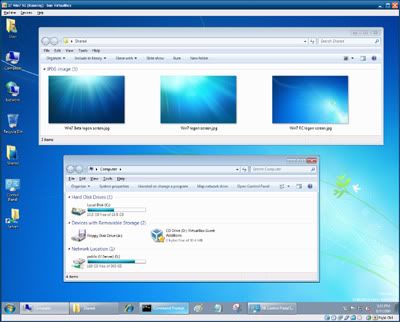
That's Windows 7 RC running in Sun's Virtual Box 3 window (on a Windows XP desktop)

If you've read this post before (scroll down to the bottom of it), you'll know about Sun's Virtual Box (VB), a virtualisation software like Microsoft's Virtual PC 6 (VPC6), which is designed for Windows XP and Windows Vista.

Virtual PC 7 (VPC7) is designed for Windows 7, but unlike VPC6, VPC7 is designed to work transparently on Win7 as a compatibility feature for Windows XP software, hence it's known as "XP Mode". If VM (Virtual Machine) software sounds familiar, you might have heard of VMware before. But what's the difference?

VB differs from the popular VMware by being free, and it differs from MS VPC6 by emulating better computer hardware (since it's newer), and like VPC7, it offers a "Seamless Mode", where you can hide the virtual desktop running in VB and use the virtual windows with your actual operating system (OS). VMware calls this the "Unity Mode".

Anyway, since VPC7 only works on Win7 and only runs XP, this makes VB an attractive option if you're running XP, Vista, Mac or Linux, and if you want to run virtual Vista, Linux, etc.

Additionally, VP7 requires your processor to support hardware virtualisation (known as VT in Intel and V in AMD). If you have an Intel Core i-class or an AMD Athlon-class or AMD Phenom-class processor, it's ready. If it's an Intel Core 2-class or Intel Pentium 4-class processor, it may or may not. Check the Intel Archive Site here to see the list.

Moving on, in our previous VB post, we talked about using VB2 to sample Win7 RC (Release Candidate) instead of installing 7RC on your computer. However, VB2 suffers from one major flaw - while it emulates newer hardware than VPC6 which uses older hardware, it doesn't support 3D, in the form of Microsoft's Direct 3D - the most important component in DirectX for Windows, and OpenGL (Graphics Library), used in Mac and Linux.

VB3 solves that by including 3D support - albeit it's experimental. With VB3, you can now take full advantage of the newer emulated hardware - just like how VB2 did, except now you have 3D.

In our following post, we'll show you how to use these free VM software. In the meantime, feel free to play around with them. Remember, they're virtual. So whatever happens in them happens in the virtual OS - NOT the OS which these VM software runs on. So relax. You're safe.

This also means you don't have to bother with anti-virus or almost any forms of security. Hence why most anti-virus won't even work in a virtual OS. Which means using a virtual OS is a very secure way to experiment with any dangerous software which might otherwise wreak havoc on your actual OS. Using virtualisation is a good way to visit unknown sites which might otherwise harm your computer with your actual OS. However keep in mind you can share files between the virtual OS and your actual OS so make sure your actual OS has an updated anti-virus! We'll show you how to share files between the virtual (guest) OS and your actual (host) OS next time.

Free Virtualisation Software Download Links:
* Virtual PC 7 requires 2 install steps - the VPC7, followed by a virtual XP image (included)

More Data?

Monday, June 15, 2009

Sims 3 and Microsoft .NET Framework

Sims 3 logo

If you've read our latest BrickGamers LEGO® Gaming Comic, you'll notice we poke fun at Sims 3, or rather, the users (or players) of Sims 3 - which could be you! Are you one?

Microsoft .NET Framework logo

Anyway, since this is BrickTech, this is more about what goes on BEHIND Sims 3, in particular, Sims 3 requires Microsoft's .NET Framework (specifically version 2.0), a software framework that needs to be installed on Microsoft Windows XP operating systems but comes as a part of Microsoft Windows Vista (version 3.0) and of course, the RC (Release Candidate) of Microsoft Windows 7. But did you know you don't have to install the latest version of .NET to play Sims 3?

While the latest version of .NET is 3.5 Service Pack 1 (250MB), with .NET 4 Beta 1 in the works, Sims 3 was designed with .NET 2.0. This means if you're running Sims 3 on Vista or Win7 RC (yes it works!), the installer (or you) won't have to install any .NET versions, but if you're using XP, the installer will put in .NET 2.0, unless you've already installed .NET 3.0 or 3.5.

However, .NET will slow down your XP since it's adding a whole new software framework to an OS. Even version 1.0 and 1.1 of .NET needs to be installed on XP - it doesn't come with it. So the wise thing to do is to upgrade or run Vista (or even Win7 RC) instead, as it comes with .NET already. Of course you don't have to do this if you're not playing Sims 3 (or any other game or software which requires .NET). However, if you are, you're better off running the speedier Win7 RC or the slow Vista, rather than the slower XP with .NET.


More Data?

Friday, June 12, 2009

Windows 7 Anti-Virus

Windows 7 Anti-Virus

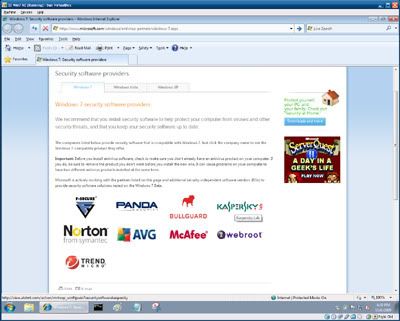
If you're using (or testing) Windows 7 RC, you should also have an Anti-Virus present, and just like with Win7 Beta earlier, where you had a choice of 3 AV, Win7 RC also comes with a choice of AV to use - even more now actually - 7. Coincidence? Not actually! Lately 2 more were added to be 9. You can see them here. So perhaps more might be added in the future. Read on to see the free duration of each offering.

The List:
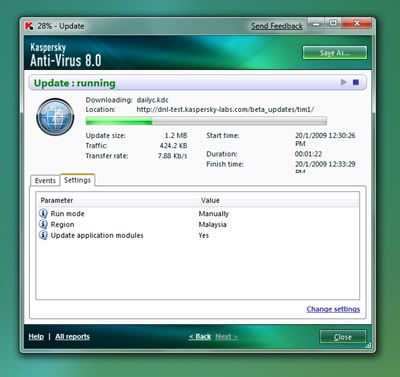
Just like before with Win7 Beta, only ONE AV offers the longest free duration of usage on Win7 RC - Kaspersky. They continue to offer half a year (6 months) of free usage for their Win7 AV 8 Beta.

Windows 7 Kaspersky

No this post wasn't paid for by Kaspersky. You do the research yourself and see who offers the best deal for testing or using Win7 RC. As gamers will say, do we hear a "Mother Russia"?

More Data?

Monday, June 8, 2009

Windows 6.1 Version

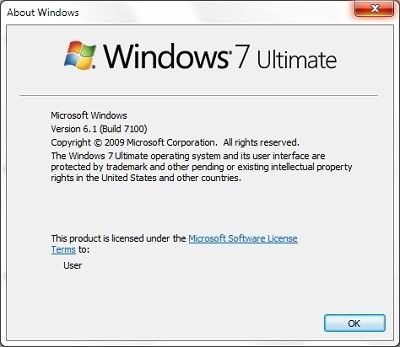
Don't believe Windows 7 is Windows 6.1? Here's the proof you can find out yourself:

Windows 7 version

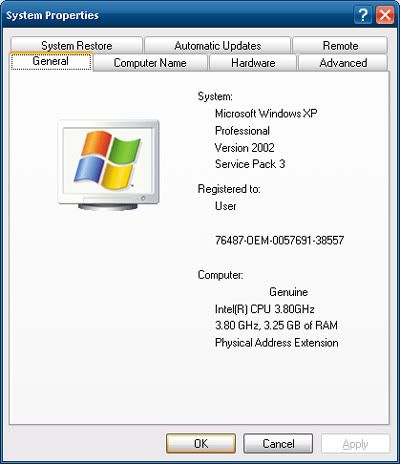
You can get this Windows version box via 2 ways - by clicking Help on the menu of any Windows Explorer window (like an opened Folder) and selecting About Windows, or clicking the Run command on the Start Menu - or its shortcut of Windows Key and R together on your keyboard, to open the Run box. But why did Microsoft have 2 versions for this Windows?

First, let's continue. Type "winver" (without the quotation marks) and hit the Enter key or click the OK button in the Run box you've opened. This method works in all Windows.

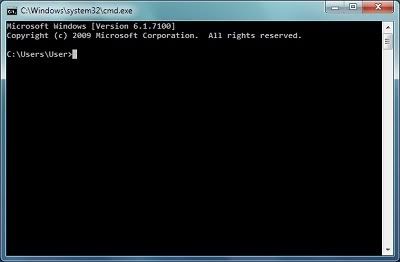
You can also use the Command Prompt. You can find it on the Start Menu under Accessories, or use the Run box and type "cmd".

Windows 7 Command Prompt

So why would Windows 6.1 be called Windows 7? Well, would you prefer Windows XP to be called Windows 5.1? Because that's what it is! Let's face it, Windows Vista sounds so much more better than Windows 6.0 (because it is), so unless you can think of a better name for Windows 7, you have to admit, Windows 7 does sound like a nice name doesn't it? Besides, with all its touch support and new Superbar Taskbar, not to mention Libraries content Shortcut, it doesn't really warrant just a .1 upgrade, don't you think so?

We'll highlight more Win7 features later that you might not know about, for those of you who might think Win7 is just an enhanced Vista. In many ways, Win7 is to Vista what Win98 was to Win95 - back then Win98 really did prove itself better. This isn't a Win98 to WinME yet again.

More Data?

Sunday, June 7, 2009

A Man Can Dream...

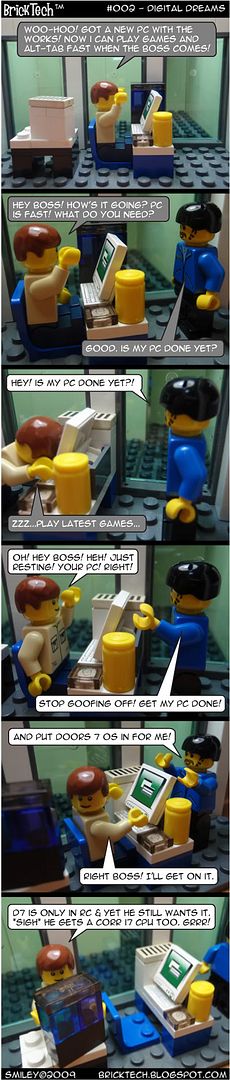
BrickTech 002

Apparently some people have no idea what RC (Release Candidate) means. RC is not RTM (Release To Manufacturing). To many people who are not in the technology line, RC is a good as any to be used as an operational computer - which isn't the case. Read on to not be duped.

Don't be surprised if you go to your local Pasar Malam and find people hawking Windows 7 (or even Windows 7 RC) as the real thing. You shouldn't have to pay for Win7 RC - it's free to download from Microsoft's site.

More Data?